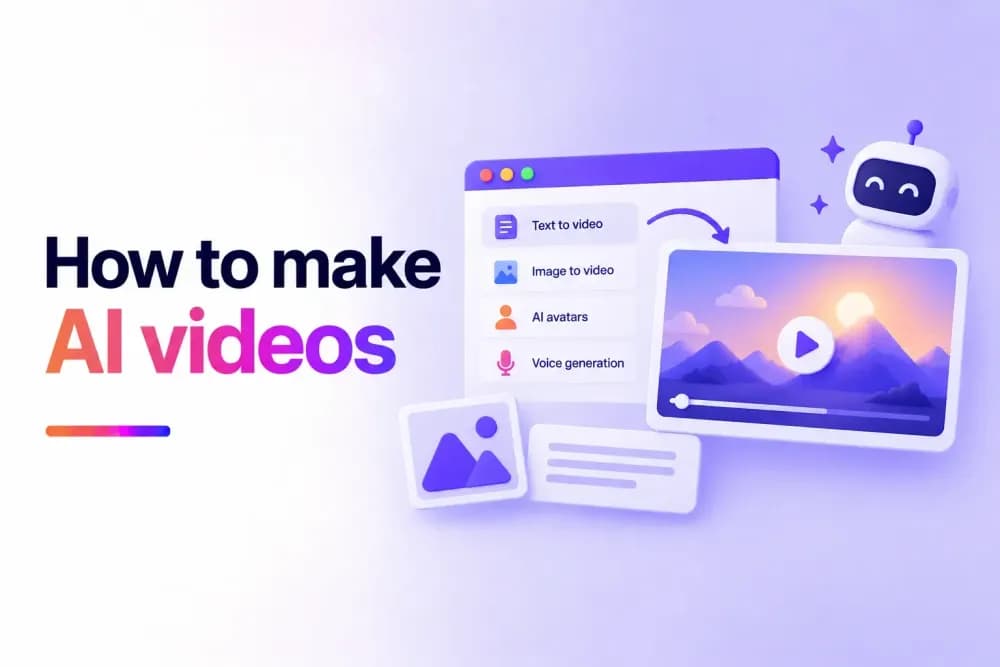
You can make AI videos by giving an AI video generator a text prompt, image, or other source material and using it to create new footage. The best approach depends on the video you want to produce and the AI tool's capabilities. This guide explains how to generate AI videos step by step, improve the results, and create longer videos for different types of content.
What do you need to make an AI video?
All you need to make an AI video is an AI video generator and an idea or source asset. The material you start with depends on the type of video you want to create.
Common starting points include:
- A text prompt. Describe the scene, subject, action, setting, and visual style you want the AI to generate.
- An image. Use an existing image as the visual starting point and generate movement around it.
- A portrait and audio. Create an AI presenter that speaks using recorded or generated audio.
- Existing footage. AI tools can also enhance video you have already created or look at it to create a prompt based on the existing footage, although this changes existing footage rather than generating a new scene.
The source material you have and the result you want will determine which AI workflow is the best fit.
How to generate AI videos step by step
AI video generation works best when you decide what the finished video needs to accomplish before generating footage. This helps you choose the right generation method and provide the AI with useful instructions.
1. Decide what you want to create
Define the purpose of the video, its audience, and where it will be used. A short social video has different requirements from a product visual, training video, presenter-led update, or creative project. Consider the intended length, format, visual style, and message before you start generating.
For longer projects, it can help to divide the video into individual scenes. Each scene can then have a clear purpose and visual direction.
2. Choose how you want to generate the video
There are several ways to generate AI videos, so choose a method based on the material you have and the type of output you need.
Text-to-video generation works well when you want to create a scene from a written description. You provide the subject, environment, movement, and other visual details.
Image-to-video generation starts with an existing visual. The AI generates movement while using the image as a reference, which can provide greater visual direction from the beginning.
AI avatars are useful for presenter-led content. A portrait can provide the visual identity of the presenter, while recorded or AI-generated audio supplies the speech.
Some projects can use several methods. A longer video, for example, could combine generated scenes with presenter segments and existing footage.
3. Prepare your prompt or source material
When you generate AI videos, the quality of the input can have a significant effect on the result. For text-to-video generation, describe what should appear in the scene and what should happen. Useful details can include the subject, action, setting, composition, camera movement, lighting, and overall visual direction.
For image-to-video generation, choose an image that clearly represents the subject and composition you want to preserve. A motion prompt can then describe how the subject or camera should move. Keep the instructions focused on the individual scene. Trying to fit several unrelated actions or major visual changes into one generation can make the result less predictable.
4. Choose your video settings
AI video generators can offer controls for factors such as model, resolution, duration, and aspect ratio. Choose these settings based on where the finished video will appear. A landscape video for a website or presentation may require a different aspect ratio from vertical content created for social media.
Cinema8 AI Studio allows users to select the AI model, resolution, duration, and aspect ratio when generating video from text or images.
Consider the purpose of early generations as well. Testing an idea before committing to the final output can help you refine the creative direction.
5. Generate the video
Once your input and settings are ready, you can generate AI videos from the prompt or source material you have prepared. AI generation creates a new output based on your instructions, but the first result may not be the version you ultimately use. Review the generated clip for composition, movement, continuity, and whether it communicates the intended idea. Small changes to the input can produce noticeably different results.
6. Review and refine the result
Review the generated video carefully before using it. Look for visual inconsistencies, unexpected movement, distorted objects, incorrect text, continuity problems, or details that do not match the prompt. People, hands, products, logos, and complex movements can require particular attention.
If the result needs improvement, revise the prompt or source material and generate another version. Changing one or two specific instructions can make it easier to understand what improves the output.
Before publishing, also check that the result is accurate and appropriate for its intended audience. Branded content should also be consistent with the organisation's visual identity and tone.
7. Prepare the video for publishing
Once you have a suitable result from your AI video creation process, prepare it for the channel where viewers will watch it. This can include combining generated scenes, adding narration or AI subtitles, checking branding, and reviewing the complete sequence.
Cinema8 AI Studio lets users save generated videos directly to their Cinema8 video library. The finished content can then be managed and used across the wider video platform.
How to make long AI videos
Learning how to make long AI videos for longer projects usually means working with multiple shorter scenes rather than one continuous generation. Start by outlining the complete video and dividing it into sections. Each section can then be broken into individual shots or scenes with its own prompt, source image, or presenter segment.
For example, a business could structure a longer AI-generated product video around:
- An opening scene introducing the problem.
- A generated visual showing the product or concept.
- A presenter segment explaining a key benefit.
- Additional scenes demonstrating different use cases.
- A final scene with the next step for the viewer.
Maintaining consistency becomes more important as the number of generated scenes increases. Reusing descriptions for subjects, environments, visual styles, lighting, and camera treatment can help provide a clearer creative direction across the project.
The individual clips can then be arranged into the required sequence using suitable video editing tools.
How to make AI videos of people
AI videos can include generated people within a scene or use an AI avatar as a presenter. The appropriate method of making AI videos of people depends on what the person needs to do in the video.
Text-to-video tools can generate scenes containing people based on a written description. The prompt can specify details such as appearance, clothing, setting, movement, and camera framing.
For presenter-led content, an AI avatar provides a different workflow. Cinema8 AI Studio can use a front-facing portrait to create a talking presenter. Users provide recorded audio or generate a voice for the avatar to speak.
Generated people should be reviewed carefully for realistic movement, facial details, visual consistency, and suitability for the intended use. You should also have appropriate permission to use source images, voices, or other material representing real people.
What can you create with AI-generated video?
You can generate AI videos for social content, marketing, education, product communication, creative projects, presenter videos, and other types of visual content.
Potential uses include:
- Social content. Produce short-form visuals for social platforms and online communities.
- Marketing content. Generate campaign visuals, promotional scenes, product concepts, and supporting footage.
- Educational content. Create visual examples, explainers, or presenter-led learning material.
- Creative projects. Experiment with characters, environments, scenes, and visual ideas without filming them.
- Product communication. Visualise products, concepts, workflows, or ideas that may be difficult to record.
- Presenter content. Create avatar-led videos using recorded or generated speech.
- Personal projects. Generate visuals for hobbies, stories, events, or other creative ideas.
AI-generated footage can also be combined with traditional video. You can use AI for individual scenes or supporting visuals while retaining recorded footage where it is more appropriate.
What should you check before using an AI-generated video?
Every AI-generated video should be reviewed before publication, especially when it contains factual information or represents a real person, product, or brand.
Check:
- Visual accuracy. Look for distorted objects, unusual movement, inconsistent subjects, and other generation errors.
- Factual accuracy. Confirm any claims, demonstrations, or information presented in the video.
- Brand consistency. Make sure visuals, language, tone, and presentation fit the organisation.
- Source material. Confirm you have the appropriate rights or permission for images, audio, voices, and other uploaded assets.
- Text and logos. Generated text and branded elements can contain errors and should be inspected closely.
- Audio. Check pronunciation, timing, volume, and whether speech matches the visuals.
- Accessibility. Add accurate captions or subtitles when required for the intended audience.
- Final playback. Watch the complete video in the format and environment where viewers will see it.
Human review is particularly important when generated content represents real people, products, brands, or factual information.
Start making AI videos with Cinema8
Making an AI video starts with choosing the right source material and generation method for the content you want to create. From there, you can generate individual scenes, review the results, refine your inputs, and prepare the finished video for your audience.
Cinema8 AI Studio lets you generate AI videos from text or images, create AI avatar content, generate voices, and upscale existing footage. Your generated videos can be saved directly to your Cinema8 library, where you can manage, host, share, and measure your content. Explore Cinema8 AI Studio and start creating your first AI video today.