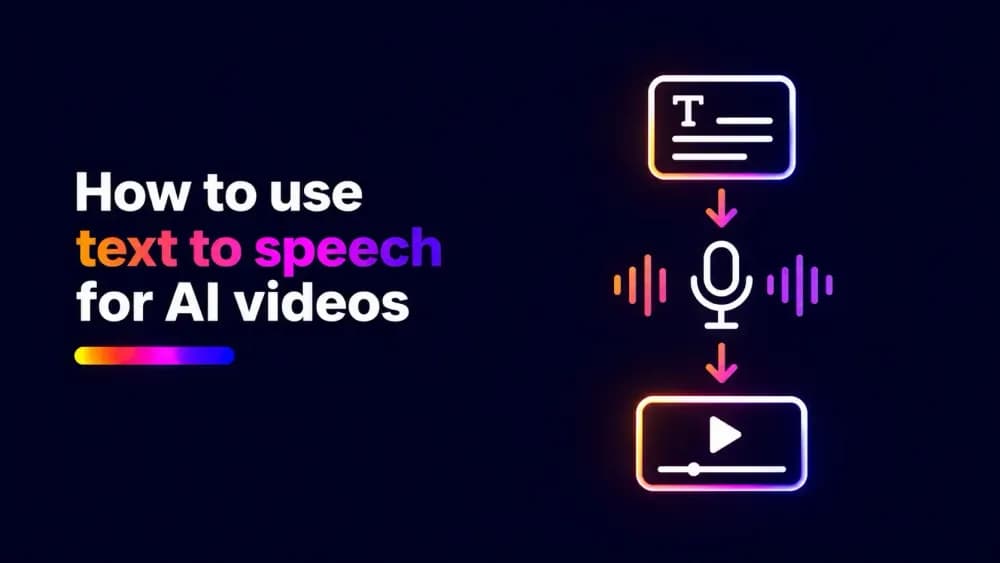
Learning how to use text to speech for AI videos starts with converting a written script into spoken narration using AI. You can then add the generated audio to your footage and synchronise it with the visuals, creating a finished video without recording your own voice. The process involves preparing your script, selecting a suitable voice, generating the speech, and refining the final video.
What is text to speech for AI videos?
Text to speech (TTS) is technology that converts written text into spoken audio. When used in video production, it allows creators and businesses to generate narration, dialogue, or voiceovers from a script without recording speech through a microphone.
AI text-to-speech systems can produce voices with different accents, speaking styles, and delivery characteristics. This makes them useful for explaining visual content, narrating demonstrations, and adding speech to videos created with AI.
For example, a business producing a product demonstration can write an explanation of each feature, generate the spoken narration, and combine it with screen recordings. The resulting text-to-speech video can communicate the same information as a traditionally recorded voiceover.
How does AI text to speech work?
AI text to speech uses speech synthesis technology to turn written language into audio. Systems are trained on speech data to learn relationships between text, pronunciation, rhythm, and natural speech patterns.
The process generally involves three stages:
- Text analysis. The system interprets the script, including punctuation, sentence structure, and words that may require special pronunciation.
- Speech generation. An AI model produces speech using the selected voice and its learned patterns of pronunciation and delivery.
- Audio production. The generated speech is made available as audio that can be reviewed and incorporated into a video.
The quality of the result depends on the speech model, the chosen voice, and the script. AI-generated speech may sound convincing, but names, abbreviations, technical terminology, and unusual sentence structures can still produce errors.
How do you use text to speech to create an AI video voiceover?
To create an AI voiceover for a video, you need a script, a text-to-speech tool, and a way to combine the generated audio with your visuals. The following steps explain how to use text to speech to create an AI voiceover, from preparing your script to adding narration to your video.
1. Prepare your video script
Start by writing the words you want viewers to hear. Your script should match the purpose of the video and provide enough context for someone who is listening. For instructional videos, organise the narration around the sequence of actions shown on screen. For marketing videos, focus on the message, supporting details, and intended next step.
Read the script aloud before generating audio. This helps identify sentences that are too long, terminology that may be difficult to pronounce, and passages that need clearer punctuation. A script written for spoken delivery is usually easier to follow than text copied directly from a webpage or document.
2. Choose an AI voice
Select a voice that suits the content and its intended audience. Consider the language, accent, tone, and speaking style rather than choosing a voice based only on how realistic it sounds.
A product tutorial may benefit from clear, measured delivery. A promotional video may call for a more energetic style, while employee training content often works best with a consistent, neutral voice.
Listen to samples using sentences from your own script where possible. A voice that sounds convincing in a short demonstration may handle technical terms or longer explanations differently.
If the video contains several speakers, consider how viewers will distinguish their voices. Clear differences in delivery can help audiences follow a conversation.
3. Generate your text-to-speech narration
Enter or paste your script into the text-to-speech tool and include a prompt if it is necessary, select the voice, and generate the spoken audio. Review the result before moving to video editing. Pay particular attention to names, numbers, acronyms, and sentences where punctuation affects meaning.
Some tools allow you to adjust speaking speed, pronunciation, or other delivery settings. Available controls vary by platform, so the amount of editing possible will depend on the tool you use.
For longer videos, generating narration in sections can make individual passages easier to review and replace. Keep the voice and character settings consistent unless the content calls for a deliberate change.
4. Add the AI voiceover to your video
Once the narration is ready, the next step is to add the voiceover to your video. Import the generated audio into your video editor and place it alongside the relevant footage. Adjust the timing so the spoken explanation corresponds with what viewers see.
For example, when demonstrating a software feature, the narration describing a button should play while that button is visible. If the explanation continues after the relevant action has finished, you may need to extend the visual sequence or shorten the script.
When learning how to add voice over to video, synchronisation is one of the most important parts of the process. Speech that arrives too early or too late can make an otherwise clear explanation difficult to follow. If your video includes music or other audio, adjust the levels so the narration remains intelligible throughout.
5. Review and export your video
Watch the complete video with the generated narration in place. Check that the audio starts and finishes at the intended points, that transitions sound natural, and that viewers have enough time to understand each visual.
Review the video with headphones and, where possible, on another device. This can reveal changes in volume or clarity that are less noticeable during editing. Add captions or subtitles where appropriate to support viewers who cannot hear the narration or prefer to watch without sound.
Once the audio, visuals, and captions are ready, export the video using settings suitable for its intended destination.
How can you fix unnatural-sounding text-to-speech narration?
If your AI-generated narration sounds unnatural, start by identifying whether the problem comes from pronunciation, pacing, or the voice itself. Awkward pauses can often be corrected by adjusting punctuation, while mispronounced words may require phonetic spelling or expanded abbreviations.
For speech that sounds rushed or monotonous, try adjusting the speaking speed or selecting a different AI voice. Regenerate the affected passage and listen to the result before adding it to your video.
What types of videos can use AI text to speech?
AI text to speech can be used across different types of video content, particularly when spoken narration helps explain information or guide viewers through a sequence.
- Marketing videos: Narrate promotional clips, product introductions, and advertisements.
- Product demonstrations: Explain software features and processes alongside screen recordings.
- Employee training: Turn written instructions and onboarding materials into narrated videos.
- Educational videos: Add spoken explanations to presentations, animations, and lessons.
- AI-generated videos: Add text-to-speech narration to AI-generated visuals or use it to give AI avatars a voice for presentations, explainers, and training content.
How can you use text to speech with Cinema8?
Cinema8 combines AI-assisted content creation with secure video hosting tools. Its Text to Speech tool lets businesses generate natural-sounding voiceovers from written scripts, with a choice of AI voices, languages, and speaking speeds to suit different types of video content.
Once generated, the audio can be saved to your Cinema8 Media Library for use in your video projects. Cinema8 also provides tools for generating videos from text and images, adding subtitles, customising the video player, and measuring viewer engagement, helping businesses manage all their video content needs within one platform.
Final thoughts on using text to speech for AI videos
AI text to speech gives businesses and creators a way to produce narrated videos without relying on manual voice recordings. The quality of the result depends on how well the generated speech complements the visuals and communicates the intended message.
With Cinema8, you can generate AI narration and manage your video content within the same platform. Explore Cinema8's plans to find the tools that suit your video production needs.