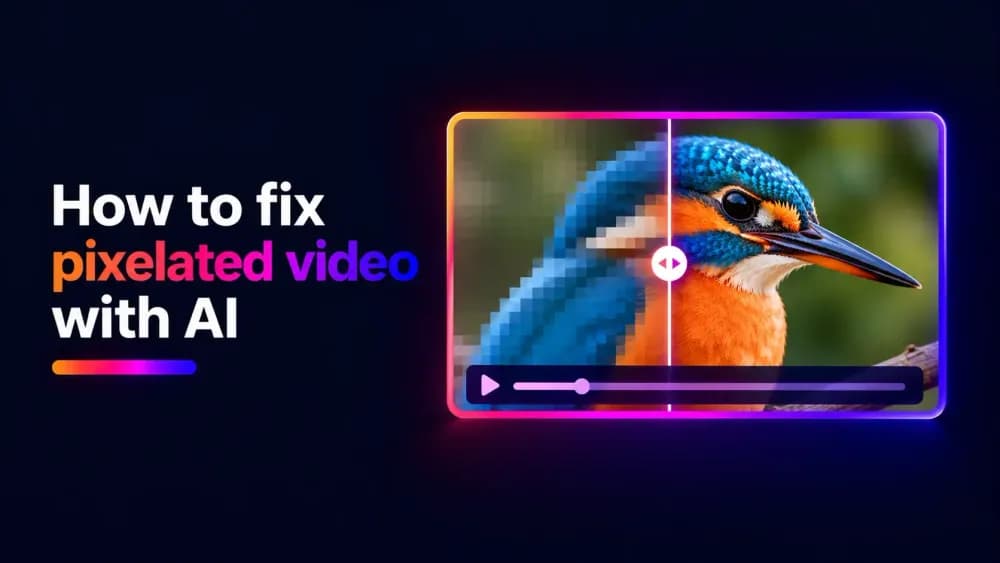
Pixelated videos can result from low resolution, compression, or recording issues, leaving footage looking blurry or distorted. AI video upscaling can improve clarity by increasing resolution and enhancing perceived detail. In this guide, we'll explain how to fix pixelated video with AI, how to improve video quality using AI enhancement tools, and how to prevent pixelation in future recordings.
Why do videos become pixelated or blurry?
Videos become pixelated when individual pixels or blocks of pixels become noticeable, making the image appear blocky or distorted. Blurry videos, on the other hand, lack sharpness and fine detail. Although these problems can look similar, they often have different causes.
Pixelation can also affect AI-generated videos, particularly when generation tools produce low-resolution footage or struggle to render fine details. Some AI video generation tools also offer video upscaling to help improve the resolution and clarity of existing footage. Understanding why your video looks unclear can help you choose the most effective solution. Common issues include:
- Low resolution: Videos recorded at a low resolution contain fewer pixels, which can make details appear unclear when viewed on larger screens.
- Excessive compression: Compressing a video too heavily removes visual information to reduce its file size. This can create visible blocks, particularly in scenes with movement or fine detail.
- Low bitrate: A video with insufficient bitrate may struggle to preserve detail, even when its resolution is relatively high.
- Digital zoom or cropping: Enlarging a small section of footage stretches the available pixels, making pixelation more noticeable.
- Poor camera focus: If a camera focuses on the wrong subject, the resulting footage may appear blurry throughout the recording.
- Motion blur: Fast movement or a slow shutter speed can cause objects to appear smeared or indistinct.
- Streaming problems: An unstable internet connection may cause a video player to switch to a lower-quality stream, making footage appear pixelated even when the original file is clear.
Before attempting to enhance your video, check whether the problem exists in the original file. If the video looks clear when played locally but pixelated online, the issue may be related to streaming quality rather than the recording itself.
How does AI improve video quality?
AI video upscaling improves the appearance of low-resolution footage by increasing resolution and generating plausible visual detail. Unlike traditional resizing, which uses interpolation to create additional pixels, AI models analyse video frames to estimate sharper edges, textures, and other features. This can reduce visible pixelation and make footage appear clearer on larger screens.
An AI video quality enhancer can also improve the appearance of older recordings and footage affected by mild softness or compression. However, the results depend on the original video's condition. Severely blurred or heavily compressed footage may still contain imperfections because AI cannot reliably reconstruct every missing detail.
How to fix pixelated video with AI: 5 steps
You can use an AI video upscaler to enhance existing footage without recording it again. Cinema8's AI Video Upscaler supports resolution enhancement at 2x, 3x, and 4x, allowing you to create higher-resolution versions of your videos. Follow the steps below to enhance video quality using AI.
Step 1: Open an AI video upscaler
Start by choosing an AI video upscaling tool that supports your video format and intended output resolution.
Cinema8's AI Video Upscaler allows businesses and creators to increase the resolution of existing footage using AI. You can access the tool through AI Tools on your Cinema8 dashboard.
Before proceeding, consider the quality of your original recording and how you intend to use the enhanced version. These factors will help you choose an appropriate upscaling level.
Step 2: Select your original video
Select the footage you want to enhance using your chosen AI upscaling tool. Whenever possible, use the highest-quality version of the original recording. A video downloaded from social media or repeatedly compressed may contain fewer usable details than the original camera file.
Starting with a better source gives the AI model more visual information to work with, which can improve the quality of the enhanced result.
Step 3: Select your upscaling settings
Choose the resolution enhancement option that best suits your footage. A higher scaling factor produces a larger video, but the ideal setting depends on your original recording. For example, a 2x upscale doubles the width and height of a video. A recording with a resolution of 640 × 360 would therefore become 1280 × 720. A 3x or 4x upscale produces an even larger output, although increasing resolution does not guarantee a corresponding improvement in visual detail.
Consider the original resolution, the condition of the footage, and the intended viewing size before selecting your settings.
Step 4: Generate and review the enhanced video
Start the AI enhancement process and allow the tool to generate the higher-resolution version of your footage. Once processing is complete, compare the enhanced video with the original. Pay particular attention to faces, text, moving objects, and areas containing fine details.
Look for improvements in clarity, but also check for unwanted visual artefacts, unnatural textures, or details that appear inconsistent between frames. If the result looks artificial or overly processed, consider trying a lower upscaling factor.
Step 5: Save and use your enhanced video
Once you're satisfied with the result, save the enhanced footage for its intended use.
Review the final video at the size and resolution at which viewers will see it. This can help you identify any remaining pixelation or visual artefacts that may be less noticeable in a smaller preview. If you're publishing the video online, avoid unnecessary compression that could reduce the quality of the enhanced footage.
You can also use Cinema8's video hosting tools to manage, share, and track your finished content.
Can AI unblur a video?
AI can help unblur a video affected by mild softness or reduced perceived sharpness, although the results depend on what caused the problem. AI unblur and deblurring tools analyse visual patterns to estimate clearer edges and textures, while AI upscaling primarily increases resolution and can improve perceived detail.
If you're wondering how to unblur a video, the first step is identifying the type of blur. Footage that appears soft because of low resolution may benefit from upscaling, while motion blur and incorrect camera focus are more difficult to correct. A dedicated AI blur remover may be better suited to these problems than a resolution upscaler.
You can use browser-based tools to fix blur in video with AI online, but the results depend on the source footage and the type of enhancement being applied. Severe blur may be impossible to correct accurately because important visual information was never captured.
How can you prevent pixelated videos in the future?
Preventing pixelation during recording and production is generally more effective than trying to repair heavily degraded footage afterwards. A few adjustments to your recording and editing workflow can help maintain clearer videos. Some useful tips include:
- Record at an appropriate resolution. Choose a recording resolution that meets or exceeds your intended publishing requirements. Higher resolutions provide more detail, particularly when cropping or resizing footage.
- Use sufficient lighting and check focus. Good lighting helps cameras capture cleaner images, while accurate focus keeps important subjects sharp and clearly defined.
- Avoid excessive digital zoom. Move the camera closer to your subject or use optical zoom where available instead of enlarging a small portion of the image.
- Choose suitable recording and export bitrates. Higher-quality settings help preserve detail and reduce visible compression artefacts, particularly in scenes with movement.
- Keep your original video files. Store the highest-quality recordings so you can return to them when editing, exporting, or creating enhanced versions.
- Review footage before publishing. Check your finished video at its intended viewing size to identify pixelation, blur, or compression problems.
Final thoughts on fixing pixelated videos with AI
Learning how to fix pixelated video starts with identifying the cause. AI video upscaling can improve the appearance of low-resolution and mildly blurry footage, while suitable recording and export settings help prevent quality loss. For existing footage that needs greater clarity, try Cinema8's AI Video Upscaler to enhance resolution and improve video quality.